Back to Guide
Advanced Guide

Advanced Bot Setup

Comprehensive customization for your smart bot with all advanced features

Want a Quick Start?

If you want to create a bot quickly without deep settings, check the Quick Setup Guide.

Quick Setup Guide →

Create Bot

The first step is to create a new bot from Bot Hub
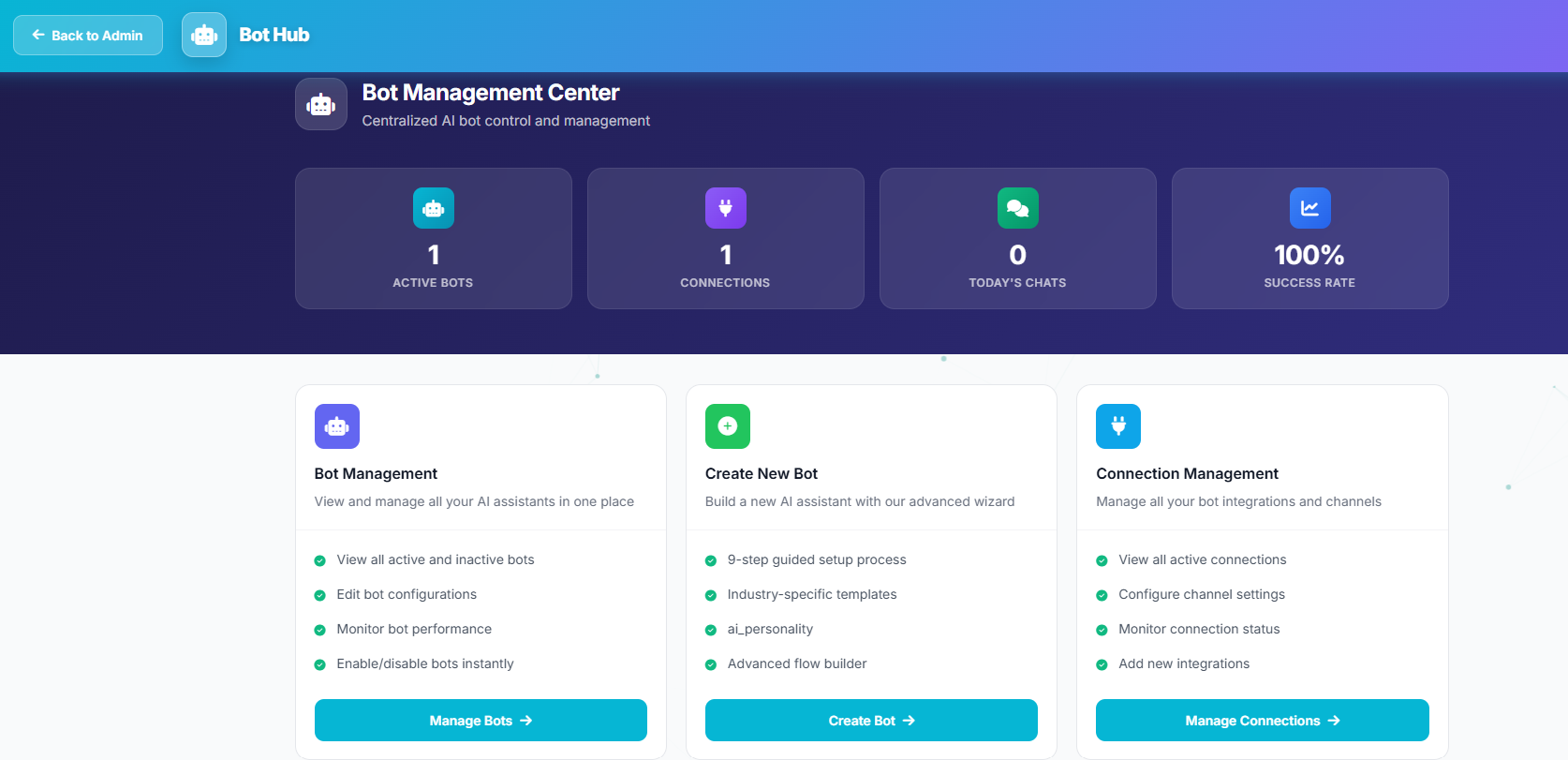
1Go to "Bot Hub" from the sidebar
2Click "Create New Bot"
3Enter bot name and description
4Choose primary language
5Select business type
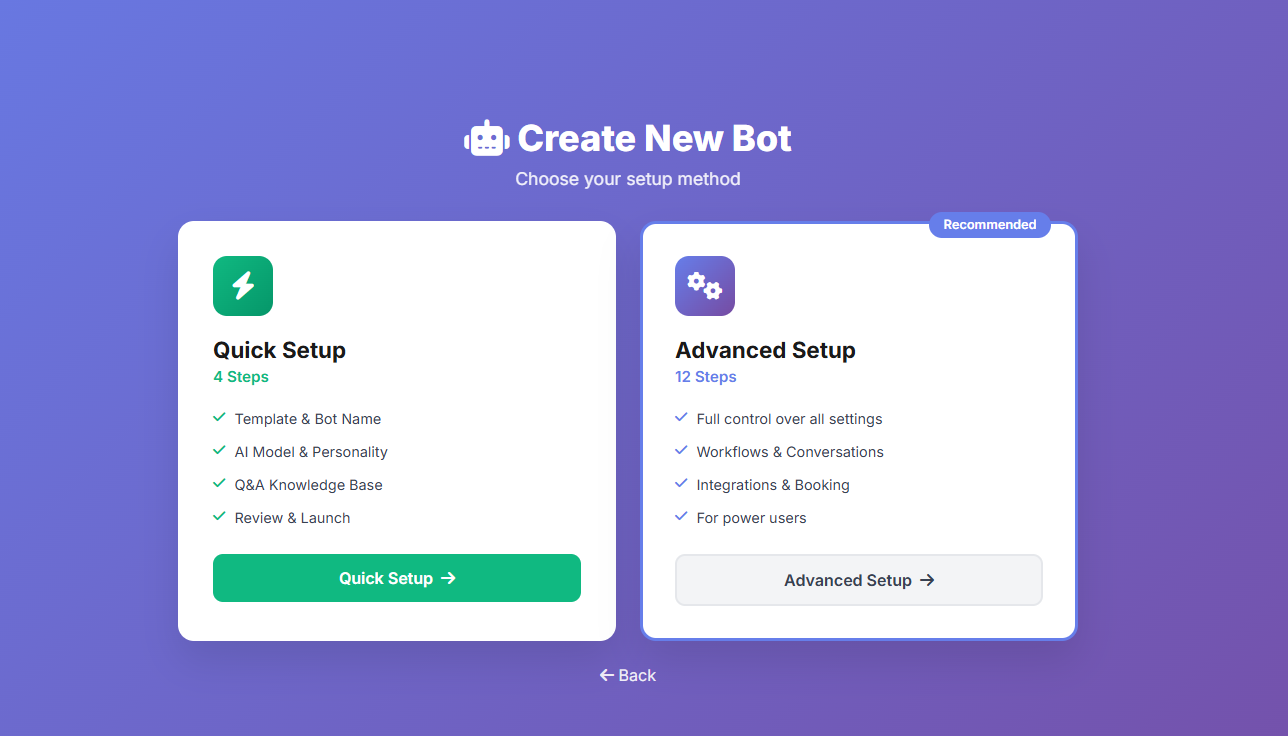
Bot Hub Choose Advanced Setup
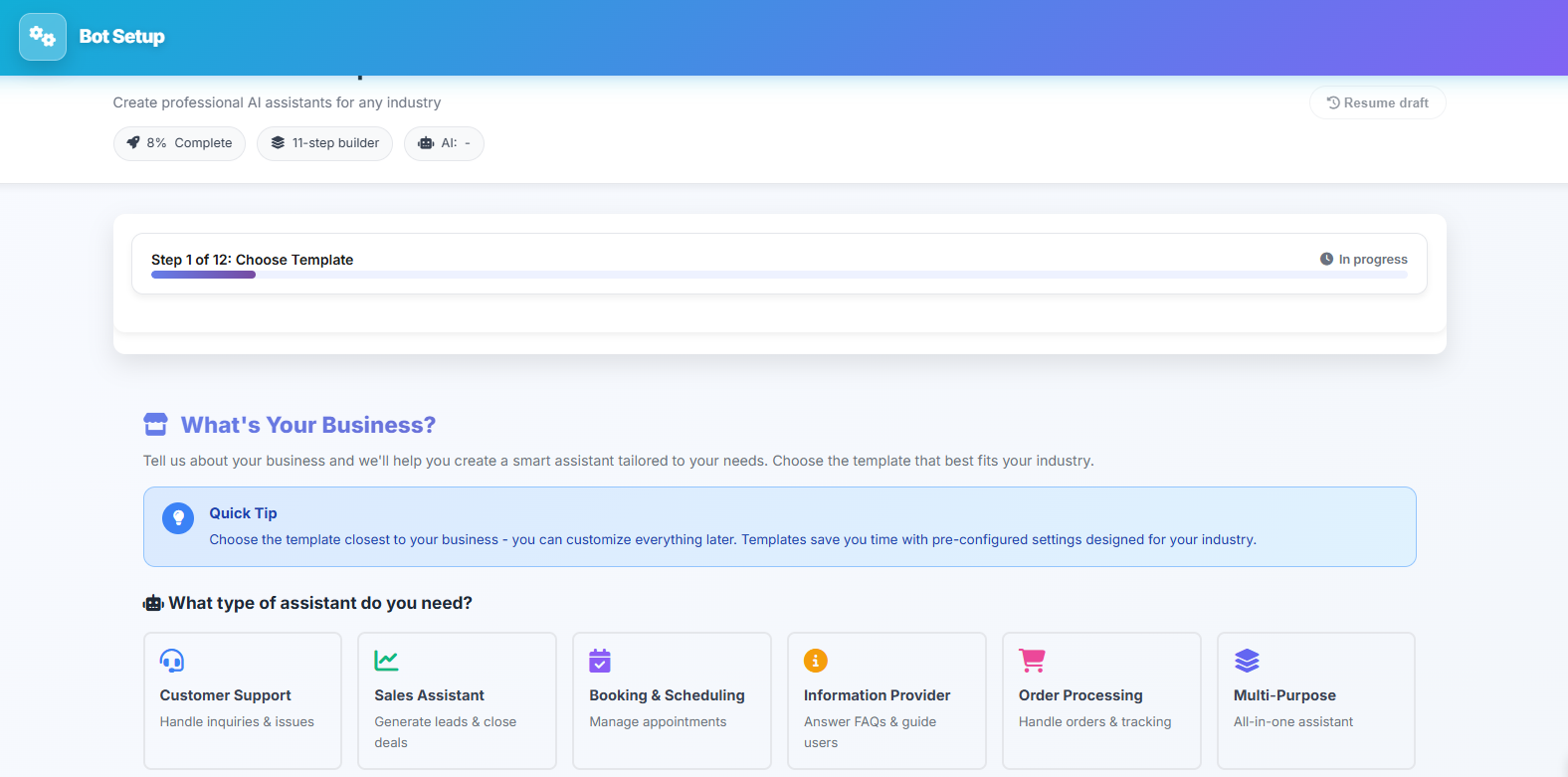
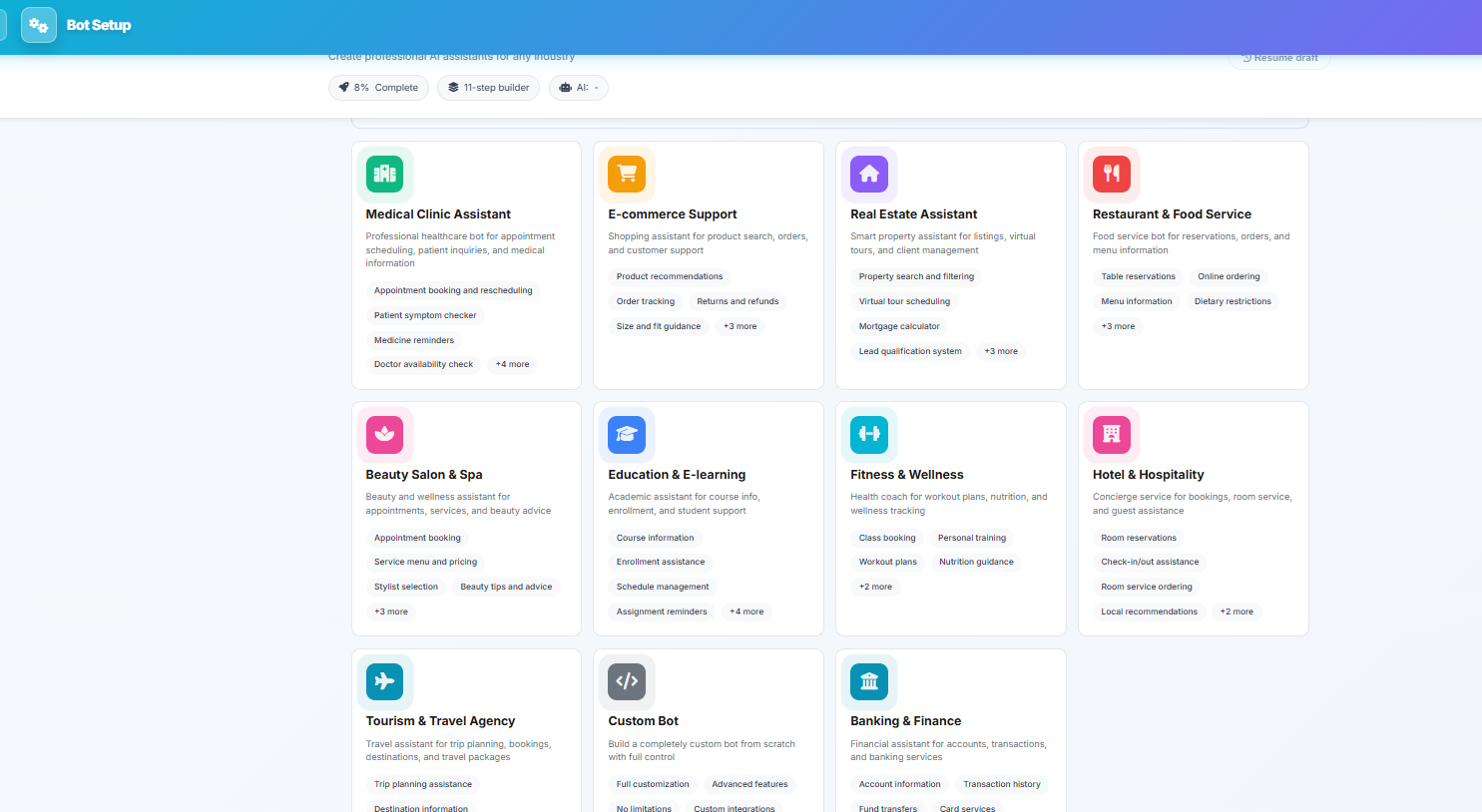
Choose Template Business Templates

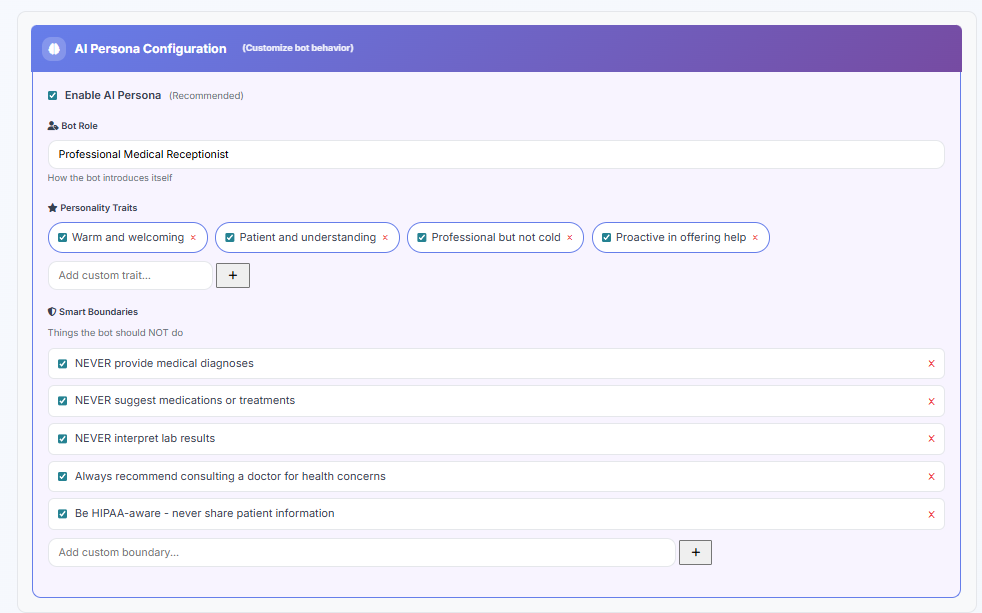
Personality Settings

Customize the bot personality to match your brand

Voice Tone

Formal - suitable for companies and institutions
Friendly - suitable for stores and services
Professional - suitable for consultations and specialized services
Casual - suitable for restaurants and entertainment

Bot Name

Choose a name that reflects your brand identity. Examples:

[Store Name] Assistant [Personal Name] from Support Team [Company Name] Customer Service

Greeting Message

The first message the customer sees when opening the chat
Keep it short and clear, tell the customer what the bot can help with
AI Persona Configuration

Knowledge Base

Add the information the bot needs to respond to customers

Business Information

Add information like: working hours, address, contact methods, return policy, payment methods

Product Information

Products can be imported automatically when connecting the store, or added manually

Documents

Upload PDF or Word files containing additional information (catalog, user guide)

Website Links

Add your website page links for the bot to read and use their information

FAQs

Add questions that your customers frequently ask

How to Add

1Go to "FAQs" in bot settings
2Click "Add New Question"
3Enter the question in different forms (ways the customer might ask)
4Enter the appropriate answer
5Add quick buttons if needed

Example Questions

What is the delivery time? What is the return policy? Is there a branch in [city]? How do I track my order? What payment methods are available?
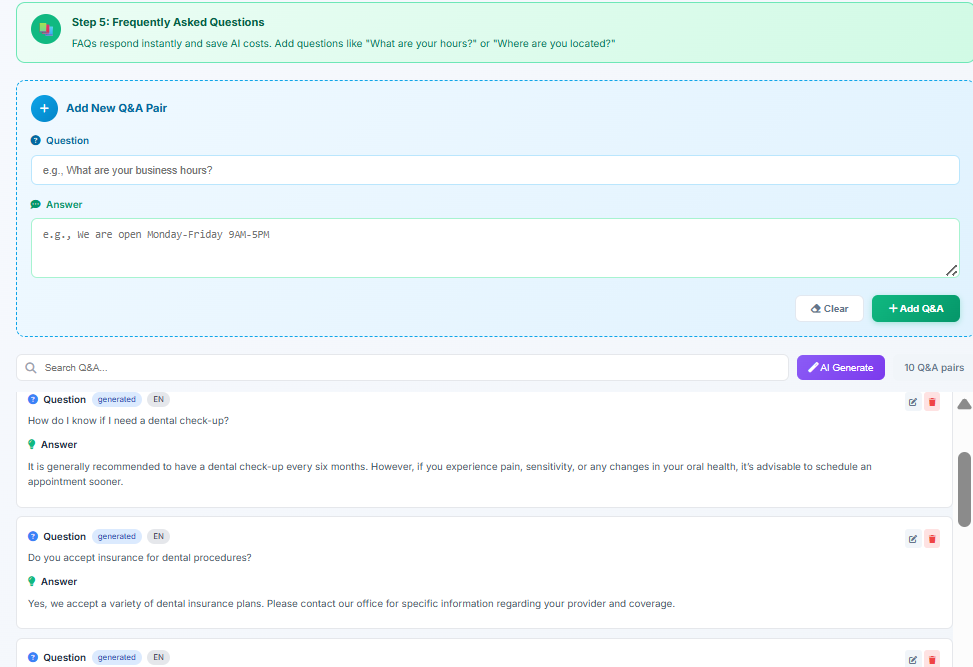
FAQs Setup

Integrations

Connect the bot with different platforms to expand its capabilities

WhatsApp

Connect WhatsApp Business number for the bot to respond to customer messages

Features: auto-reply, bulk messaging, message templates

Salla

Connect your Salla store to enable order tracking and product search

Features: order tracking, product search, customer import

WooCommerce

Connect your WordPress/WooCommerce store
Features: same as Salla features

Website Widget

Add chat widget to any website

Features: customize colors and appearance, quick buttons
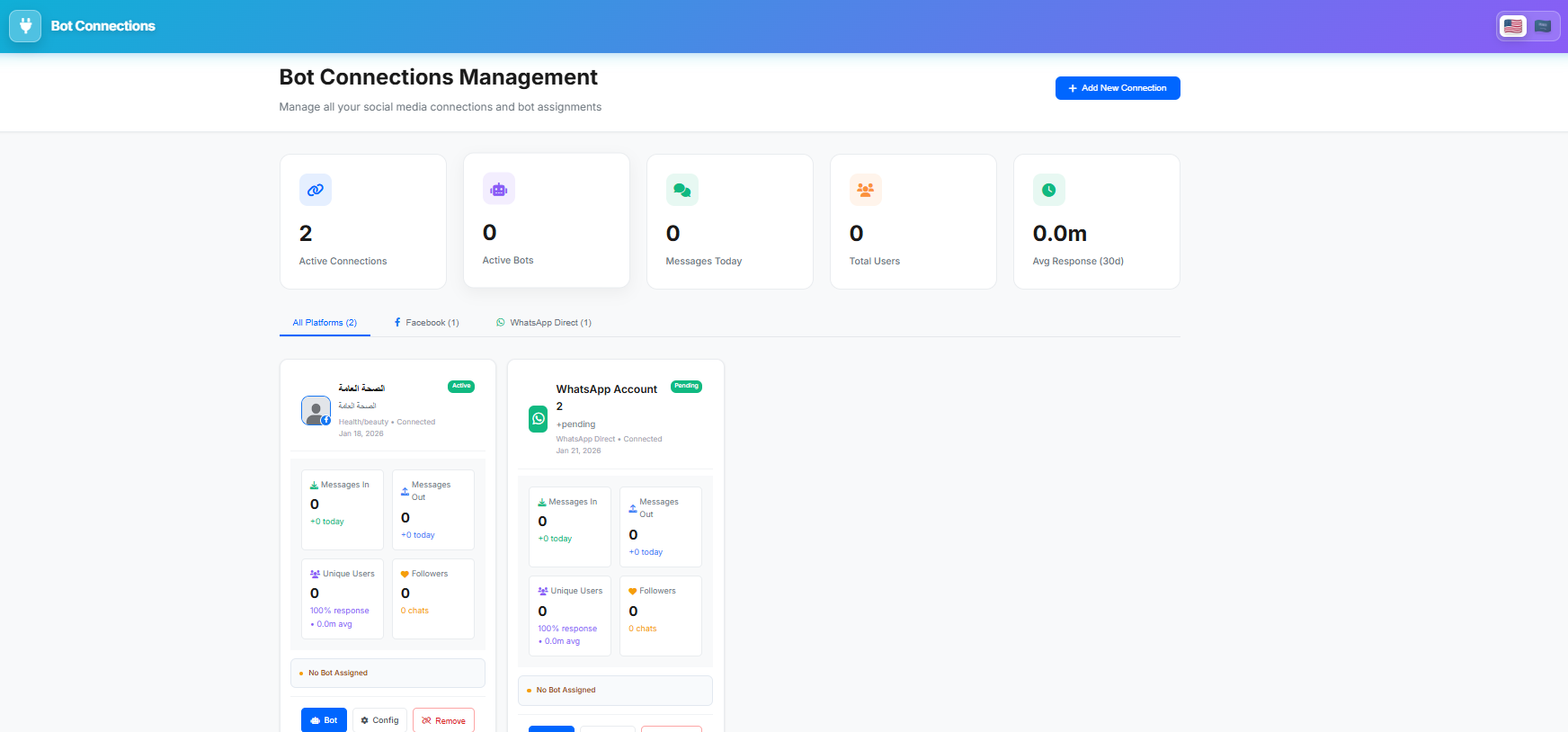
Bot Connections Management

RAG Knowledge Base

Upload your documents for the bot to learn from and answer more accurately

Upload Documents

Upload PDF, Word, Excel, CSV, TXT, JSON files

Supported file types: catalogs, user guides, policies, price lists

Paste Text

Add text content directly without uploading files
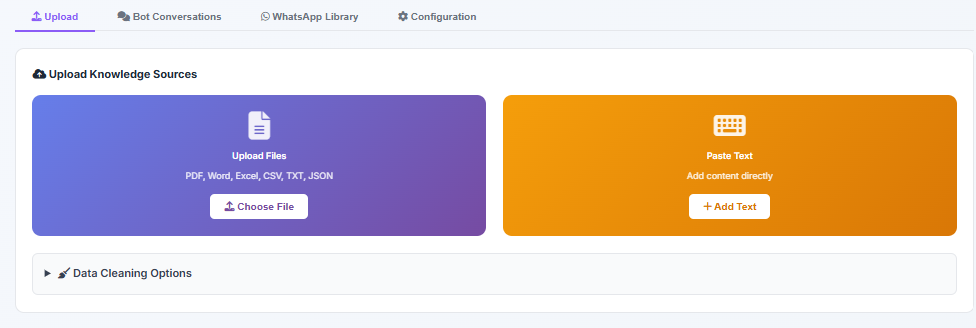
Upload Knowledge Sources

Smart Conversations

Create ready-made conversation scenarios to guide customers

What are Smart Conversations?

Ready scenarios like "book appointment" or "request info". When a customer says certain keywords, the bot automatically starts the right conversation.

Create Conversation
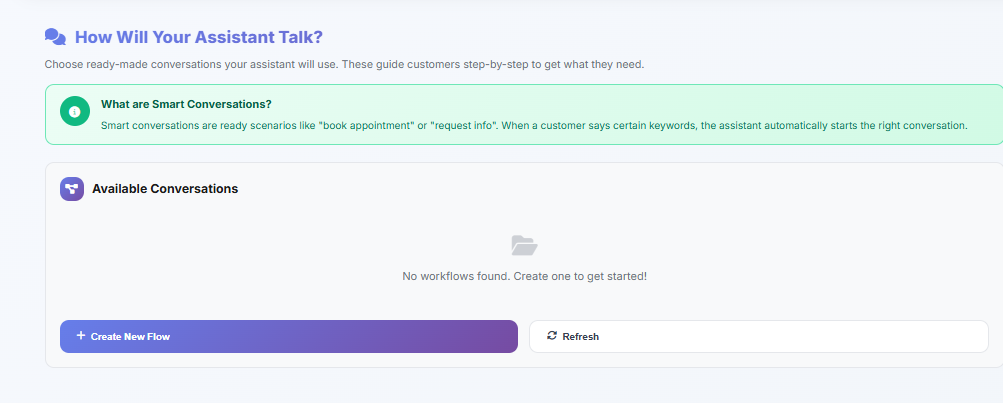
1Click "Create New Flow"
2Set keywords that trigger the conversation
3Design conversation steps with drag and drop
4Add responses, buttons, and conditions
Smart Conversations

Appointment Booking

Let customers book appointments directly from chat

Trigger Keywords

Set words that start the booking process (e.g., book, appointment, reserve)

Booking Settings
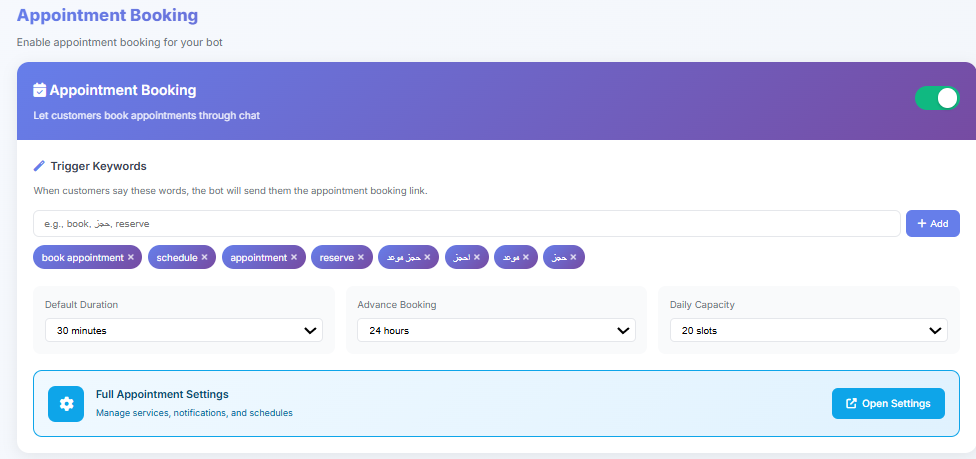
Default appointment duration (30 min, 1 hour, etc.)
Advance booking (how many days ahead)
Daily capacity (appointments per day)
Appointment Booking

AI Priority System

Control the order of information sources the bot uses

Priority Order

Drag and drop to change source order. Bot searches in order until finding the best answer.
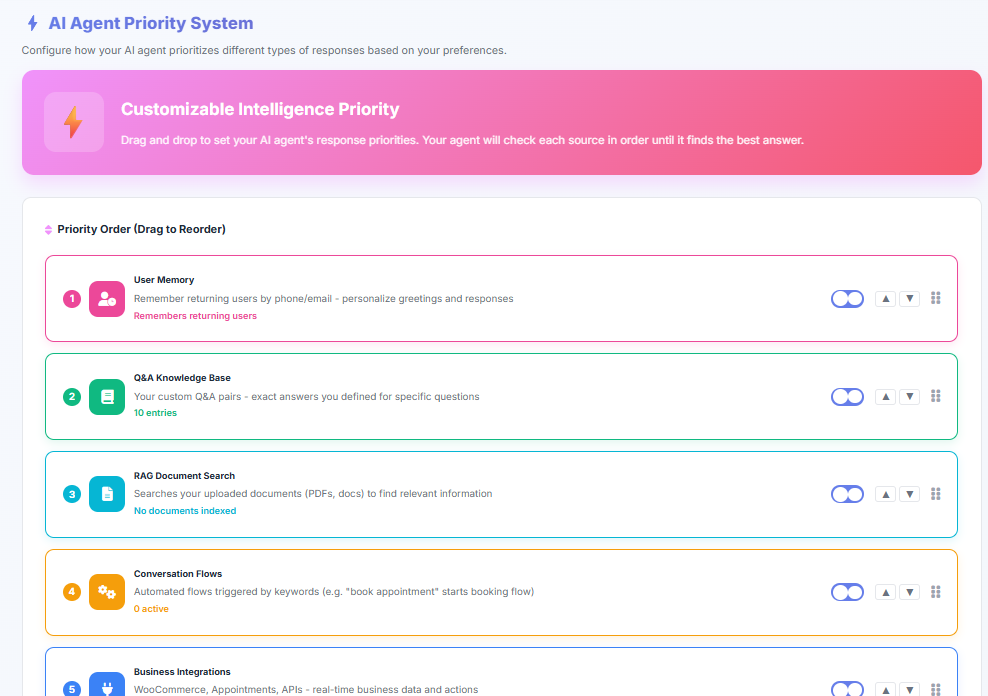
User Memory - Remember returning customers
Q&A Knowledge Base - Pre-defined answers
RAG Document Search - Search uploaded files
Conversation Flows - Programmed scenarios
Business Integrations - Store and order data
AI Priority System

Test & Launch

Test your bot and ensure it's ready before launch

Live Preview

Try the bot in an interactive chat window before launch
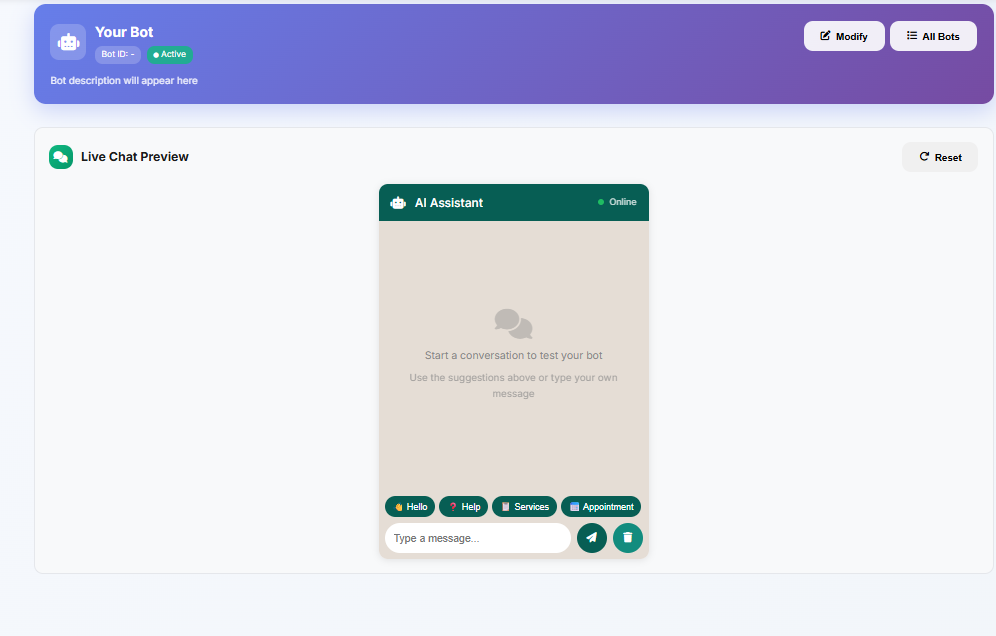
Live Chat Preview

Bot Health Check

Review configuration points and warnings before launch
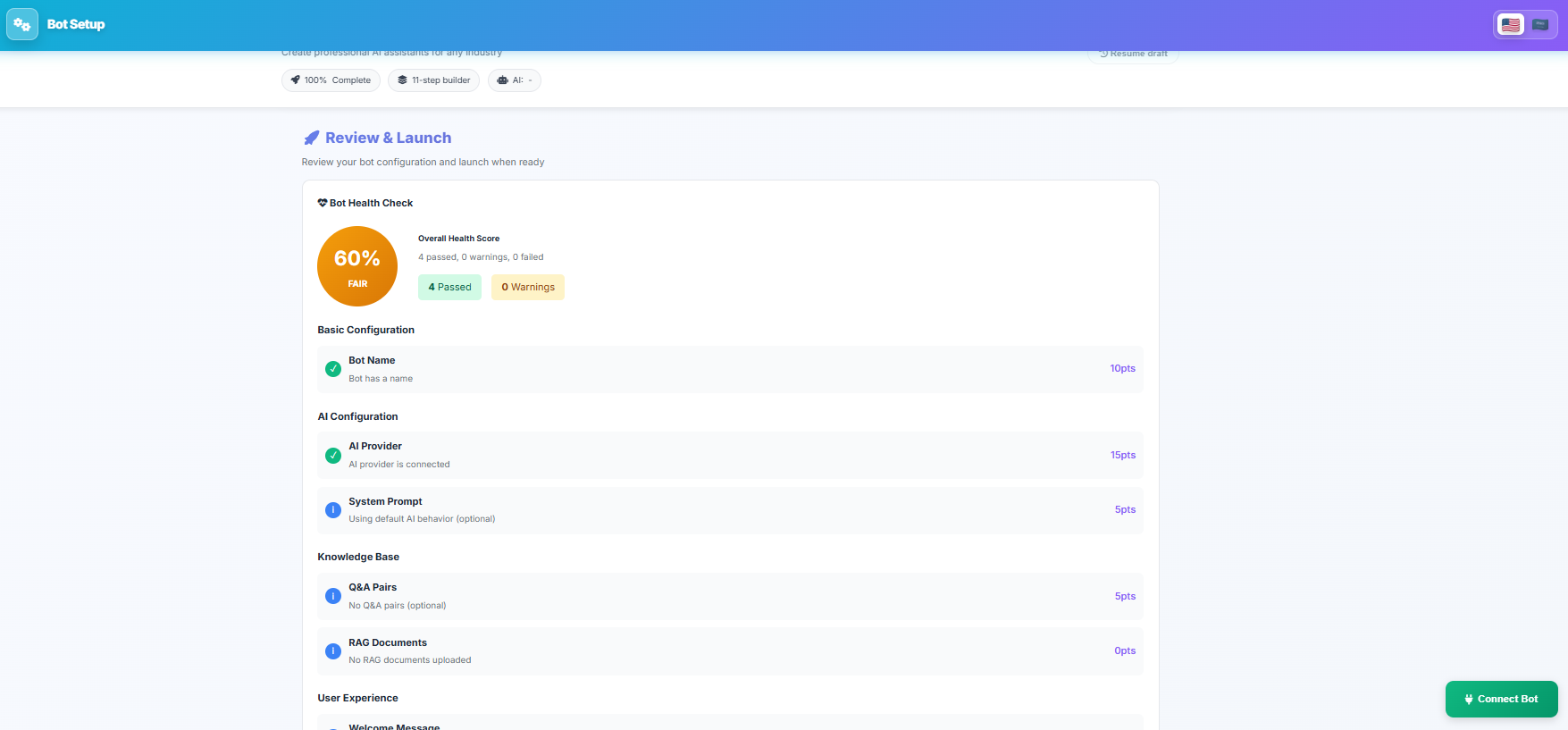
Basic Configuration (bot name, description)
AI Configuration (provider, model)
Knowledge Base (FAQs, RAG documents)
Bot Health Check

Social Media

Connect the bot to your Facebook and Instagram pages

Facebook Messenger

Connect your Facebook page for the bot to respond to Messenger messages

Instagram

Connect your Instagram account to respond to direct messages

Features

Auto-reply to messages 24/7
Reply to comments
Send message templates
Track statistics
Social Media Connections

Advanced Settings

Advanced settings for full control over bot behavior

Language Settings

Primary language: Arabic or English
Auto-detect: Bot detects customer language and responds in it
Multi-language support: supports 50+ languages

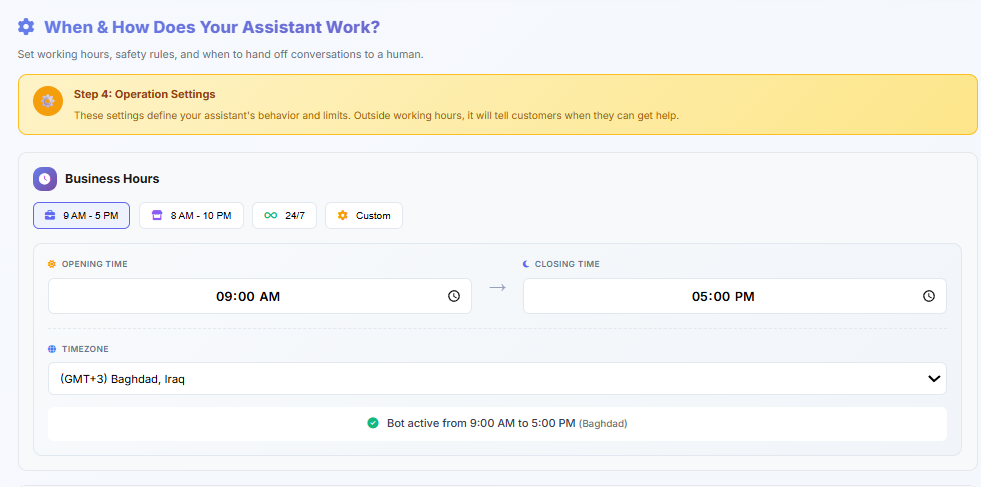
Working Hours

24/7: Bot always works
Custom: set working hours
Offline message: message shown outside working hours
Business Hours

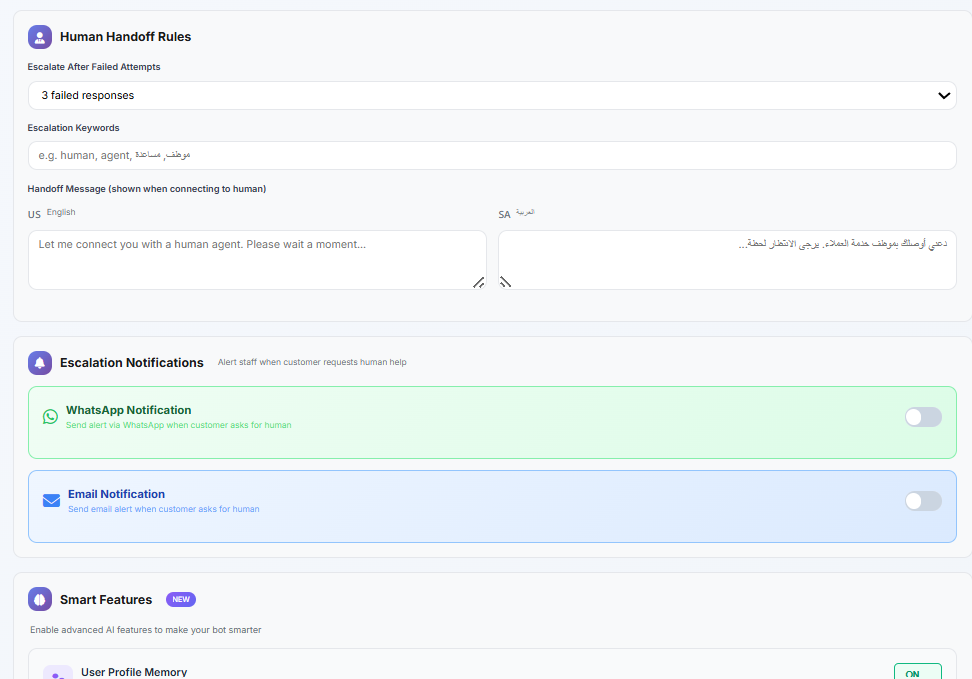
Handoff Settings

Automatic: Bot decides when to transfer
By keywords: when certain words are typed
By button: "Talk to agent" button
Human Handoff Rules

Security

Conversation encryption
Auto-delete sensitive data
Team access permissions
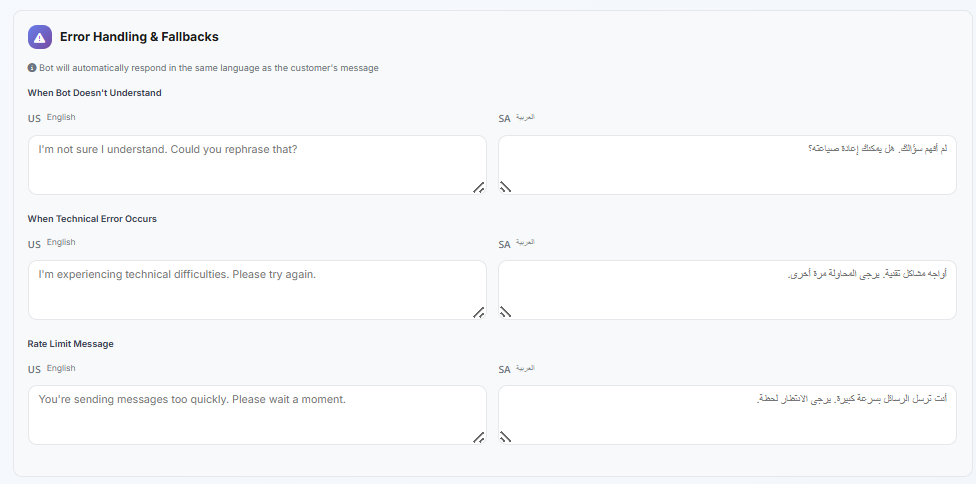
Error Handling & Fallbacks

Download Complete Guide

Download a copy of the advanced guide for reference

Download Guide (PDF)

Ready to create an advanced bot?

Start now and benefit from all advanced features